
Downloading Contacts
This article will guide you through downloading:
All contacts under 50,000 total records
Contacts from a specific campaign
Contacts from a list
A filtered group of contacts via Metrics
___________________________________________________________________________
Download all Contacts (less than 50,000 records)
Navigate to the 'Contacts' page in your portal.
Click the 'Download .csv' button.
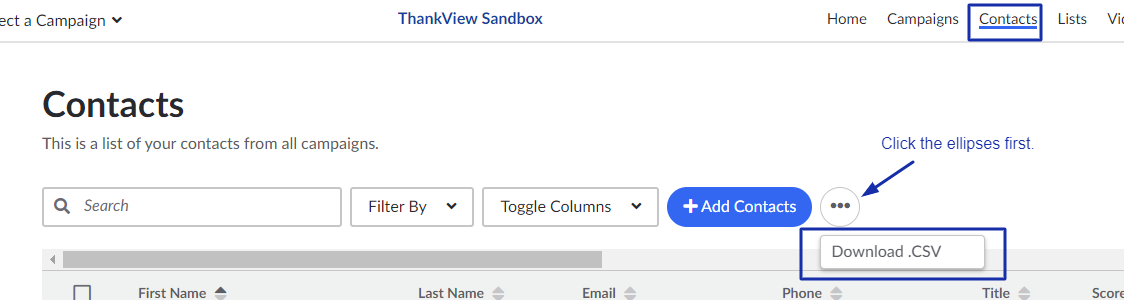
This will open a new tab while the system prepares your file.
The download may take a minute (or longer depending on volume). Do not close the tab until the download begins. If you need to download more than 50,000 records, please reach out to your Customer Success Manager or support@thankview.com.
Download Contacts from a Campaign
Navigate to the 'Contacts' page in your portal.
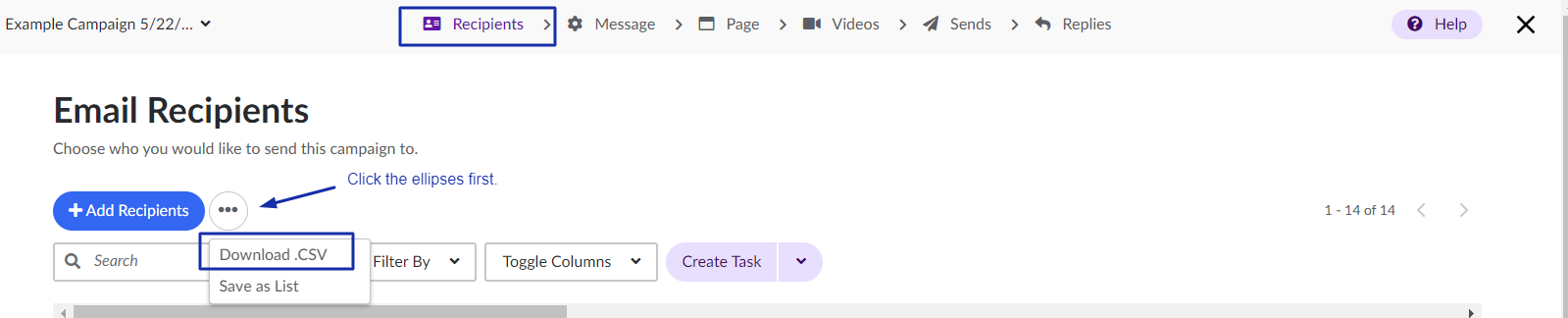
Search for and open the campaign. You will be directed to the 'Recipients' tab.
Click the ellipses (...) next to the '+ Add Recipients' button.
Select 'Download .csv'.
Download Contacts from a List
Navigate to the 'Lists' page.
Search for and open the list.
Click the ellipses (...) next to the '+ Add Recipients' button.
Select 'Download .csv'.

Download a Specific Group of Contacts via Metrics
Use this method if you need to export a filtered group (for example: opened, clicked, bounced, etc.).
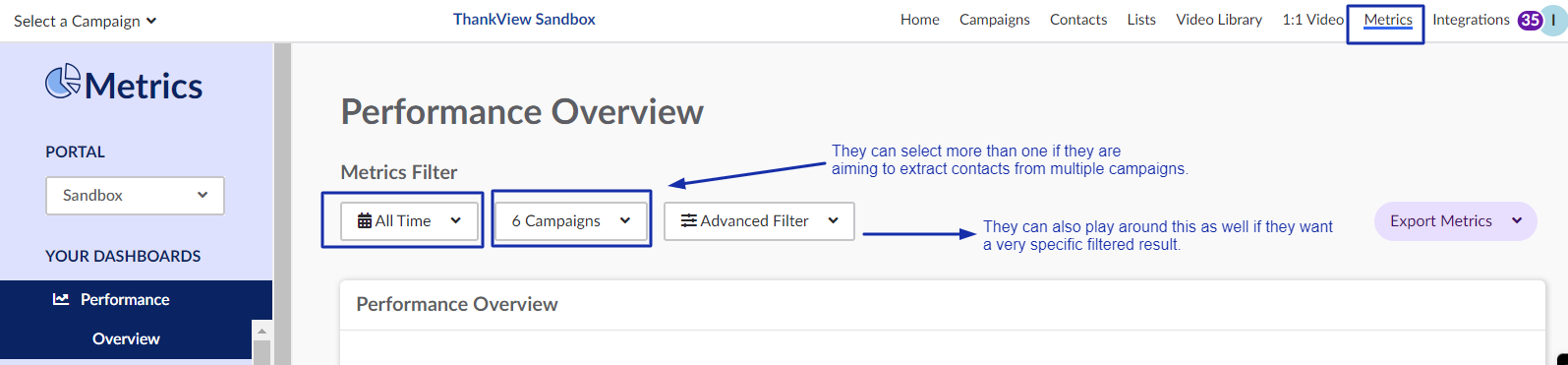
Navigate to the 'Metrics' page.
Set your date range and campaign filters.
If you are not filtering by send date, we recommend to set the date filter to "All Time".
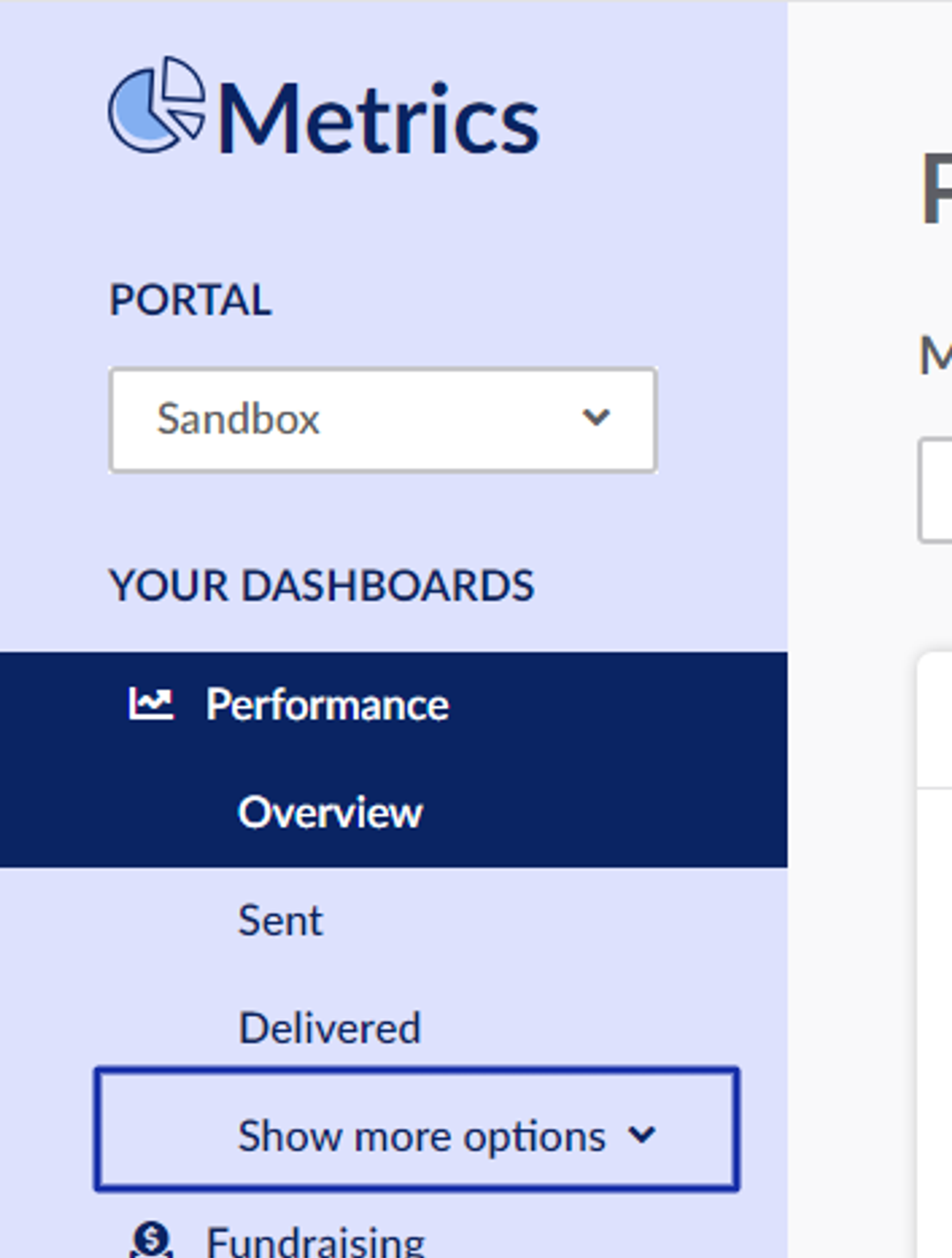
In the left panel under 'Performance', click 'Show more options' to expand to additional metrics.
Use available filters of the 'Advanced Filter' to narrow your results.
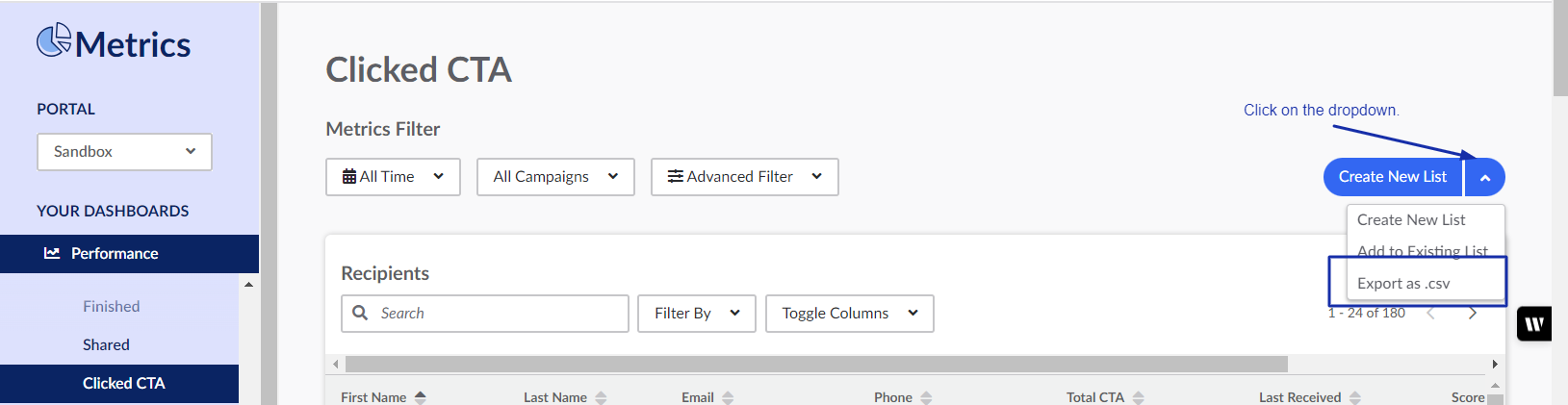
Click the dropdown next to 'Create New List'.
Select 'Export as .csv'.
If you have additional questions, please reach out to your Customer Success Manager or support@thankview.com.
Reply
Content aside
- 1 mth agoLast active
- 10Views
-
1
Following