
ThankView + Salesforce Integration Guide
Connect ThankView to Salesforce to automatically track video engagement activity directly within your CRM.
Overview
The ThankView integration sends recipient engagement data from ThankView into Salesforce, so your team can view email and video performance alongside donor records.
When a recipient:
Opens an email
Watches a video
Clicks a call-to-action button
Downloads or shares a video
Replies via text or video
That activity is logged in Salesforce and linked to the appropriate Contact or Lead record.
This allows your fundraisers and relationship managers to prioritize follow-up and track engagement — without leaving Salesforce.
Getting Started
Step 1: Connect ThankView to Salesforce
This is a one-time setup.
Navigate to Integrations inside your ThankView portal
Click Connect to Salesforce
Log in to Salesforce and authorize access
ThankView uses secure OAuth authentication. Your Salesforce password is never shared.
Step 2: Configure Salesforce (Admin Required)
Before engagement data can sync, your Salesforce admin must create a custom object named:
ThankView__c
This object stores all ThankView engagement activity.
Required Fields
Your ThankView__c object must include the following fields (API names must match exactly):
Field API NameType
Contact__c |
Lookup (Contact) |
Lead__c |
Lookup (Lead) |
Event_Name__c |
Text |
Sent_Date__c |
DateTime |
Opened__c |
Checkbox |
Clicked__c |
Checkbox |
Started_Watching__c |
Checkbox |
Finished_Watching__c |
Checkbox |
CTA_Clicked__c |
Checkbox |
Downloaded__c |
Checkbox |
Shared__c |
Checkbox |
Bounced__c |
Checkbox |
Unsubscribed__c |
Checkbox |
Views__c |
Number |
Url__c |
URL |
Video_Url__c |
URL |
Text_Reply__c |
Text (255) |
Video_Reply__c |
URL |
Important: Field API names must match exactly, including the __c suffix. Even small naming differences can prevent data from syncing properly.
If your organization uses multiple ThankView portals, your admin may also add:
Portal_Id__c(Text)Portal_Name__c(Text)
If you need assistance configuring the object, ThankView support is happy to help.
Error Messages and Fixes
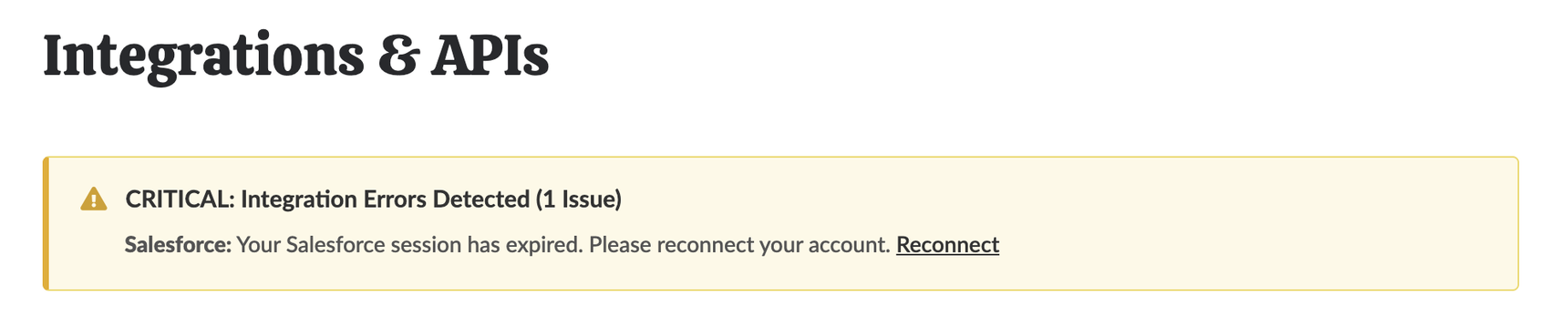
1. Session or Connection Expired
The Problem: Your Salesforce authorization token has expired or been revoked. This often happens after a password change or a long period of inactivity.
How to Fix:
Go to ThankView → Integrations & APIs.
Click Reconnect on the error banner.
Log in with your Salesforce credentials and click Authorize.
Pro Tip: If the error persists, ask your Salesforce admin to confirm your user account is still active and that the "Connected App" access for ThankView hasn't been revoked.
2. "Sufficient Permissions" or "API Access Disabled"
The Problem: The user account connected to ThankView lacks the necessary "clearance" to exchange data, or your Salesforce edition has disabled API access entirely.
Required Permissions:
API Enabled: Must be checked on the user profile.
Read/Write Access: Required for Contact and Account objects, as well as any custom objects (e.g.,
ThankView__c).
How to Fix:
Contact your Salesforce admin to verify these settings under Setup → Users.
Ensure the "API Enabled" box is checked for your profile.
Note: Some versions, like Salesforce Group Edition, do not include API access by default. You may need to contact Salesforce to discuss an upgrade if this is the case.
3. Mapping Errors: Missing or Deleted Fields
The Problem: A field used in your ThankView mapping was renamed/deleted in Salesforce, or Salesforce now requires a field that ThankView isn't sending.
How to Fix:
If a field no longer exists: Note the field name in the error (e.g.,
Bounced__c). Go to Integrations & APIs → Salesforce Settings and update or remove that specific mapping.If a required field is missing: If Salesforce recently made a field mandatory (e.g.,
Donor_ID__c), you must add a mapping for it in ThankView. Alternatively, ask your admin to make that field optional in Salesforce.
4. "Invalid Salesforce ID"
The Problem: One or more contacts have a Salesforce ID that doesn't match the required format, preventing the two systems from "matching" the records.
How to Identify & Fix:
The Format: Valid IDs are 15 or 18 characters long and always start with a letter (e.g.,
003...).The Error: If you see numeric-only IDs (e.g.,
1004422) or unusual prefixes, they are invalid.The Fix: Go to Contacts in ThankView, search for the affected individuals, and either clear the ID or update it to the correct 15/18-character string from Salesforce.
5. "Unable to connect to Salesforce"
The Problem: ThankView cannot reach Salesforce's servers. This is usually a temporary network issue or a Salesforce-wide outage.
How to Fix:
Wait: Refresh the page after 15–30 minutes.
Check Status: Visit status.salesforce.com to check for ongoing service disruptions.
Reset: If the issue lasts more than 24 hours, try disconnecting and reconnecting the integration.
Support: If the problem persists, reach out to us at support@thankview.com.
How the Sync Works
Once connected and configured:
Engagement data syncs automatically every 2 hours
A 30-minute buffer ensures engagement metrics are finalized before syncing
There is no manual “sync now” button
Each campaign send creates a separate ThankView__c record in Salesforce.
How Contact Matching Works
ThankView must match engagement data to a Salesforce record. Matching happens in this order:
Salesforce Contact ID (Recommended)
If the Donor ID field in ThankView contains a valid Salesforce Contact ID, it will be used for an exact match.
Email Address (Contact)
If no Contact ID is available, ThankView searches Contacts by email address.
Email Address (Lead)
If no Contact is found, ThankView searches Leads by email.
No Match
If no record is found, engagement data for that recipient will not sync.
Best Practice
For the most reliable matching:
Include the Salesforce Contact ID in the Donor ID field when importing contacts into ThankView
orEnsure the email address in ThankView exactly matches the email address in Salesforce
Viewing Engagement in Salesforce
Engagement records appear as related ThankView__c records on Contact or Lead records.
From Salesforce, your team can see:
Campaign name
Send date
Open status
Video watch progress
CTA clicks
Downloads or shares
Text or video replies
Each campaign send generates its own record, even if the same person receives multiple campaigns.
Troubleshooting
Integration Connected, But No Data Appears
Check the following:
1. Sync Enabled
Connecting the integration and enabling sync are separate steps. If unsure, contact ThankView support to confirm syncing is active.
2. Custom Object Configuration
Verify:
Object name is exactly
ThankView__cField API names match exactly
Required fields exist
A common issue is renaming Contact__c to something else (like Constituent__c).
3. Contact Matching Issues
If contacts don’t match:
Confirm email addresses match exactly
Verify Donor IDs are valid Salesforce Contact IDs (typically begin with “003”)
If testing in a sandbox, confirm those contacts exist in the sandbox
4. Data Hasn’t Synced Yet
Sync runs every 2 hours, with a 30-minute buffer. New activity may take up to 2.5 hours to appear.
Data Synced Previously But Stopped
Possible causes:
Salesforce connection expired (reconnect from the Integrations page)
The connected Salesforce user’s permissions changed
The
ThankView__cobject or fields were modified or deleted
Some Contacts Sync But Others Don’t
ThankView can only sync data for recipients that exist in Salesforce.
If some records are missing:
Check for email typos
Confirm Contact IDs are valid
Ensure the records exist in the correct Salesforce environment (sandbox vs. production)
Sandbox vs. Production Environments
ThankView supports both Salesforce production and sandbox environments.
If you are testing in a sandbox:
Contact ThankView support before connecting
Ensure test contacts exist in the sandbox
Confirm the
ThankView__cobject is configured identicallyWhen ready to move to production, reconnect to the production environment
Frequently Asked Questions
How often does data sync?
Every 2 hours, with a 30-minute buffer.
Is this a two-way sync?
No. The integration is one-way: ThankView sends engagement data to Salesforce.
Can historical campaigns be synced?
Yes. Contact ThankView support to re-sync past campaigns.
Can I pause the sync?
Yes. Contact ThankView support to temporarily disable syncing.
What happens if a Contact is deleted in Salesforce?
Future engagement cannot be matched and will not sync. Existing ThankView__c records will remain.
Can I rename the custom object?
No. The object must be named ThankView__c. If you use a custom Contact object, ThankView can support that with configuration assistance.
Need Help?
If you need assistance:
Confirm the integration is connected
Verify the
ThankView__cobject setupContact ThankView support at support@thankview.com
Reply
Content aside
- 1 mth agoLast active
- 99Views
-
1
Following