
Building Custom Landing Pages
The Landing Page is where your recipients view your videos, and is an opportunity to create a fully branded experience for them.
The Landing Page Builder is available for Starter, Pro, Premium, Enterprise and Free Trial clients. Bespoke landing pages are available to Premium clients only.
If you would like in-depth training on this feature, check out our Landing Page Builder video tutorial.
Accessing the Landing Page Builder
- Log into your ThankView portal > Settings > My Portal.
- Scroll down to My Landing Pages, then click Create Landing Page.
Additional Locations
- Access the Landing Page Builder directly within a campaign in the Page section.
- Click Copy Shareable Link within the Landing Page Builder to share it with the person who will be creating your landing page.
Creating a Landing Page
Once you click Create Landing Page, you'll see the first page where you can start the process and even find examples.
Below are the details that allow you to fully customize your Landing Page, as well as the required formats:
- Landing Page Title
- Navigation Bar (hex code)
- Organization Logo (.jpeg or .png, must be less than 1000px width)
- Your Background (.jpeg or .png, 2048px x 1536px)
- Call to Action Text (hex code)
- Call to Action Button (hex code)
- Secondary Button Text (hex code)
- Reply Button (hex code)
- Save Button (hex code)
- Share Button (hex code)
Please note: all images uploaded into ThankView will have recommended image specifications. If you upload an image that is not the correct size, you will get a warning message to add a different image.
Readability & Branding
We provide two primary tools within the Your Background section to ensure your text is legible against your imagery:
White Gradient: You can choose whether the entire background image displays clearly or if the lower half features a white gradient. This is often used to soften the area behind the video and text. To toggle this, click Hide/Show Gradient.
Description Texture: If you choose to show your entire background image without a gradient, text descriptions can sometimes become difficult to read. You can now select the Description Texture button (located next to the Gradient button) to add a styled box behind your text.
Custom Colors: This feature includes a color picker, allowing you to choose a specific brand color for the box to ensure your landing page remains fully branded and accessible.
Self-Service: This is available to all users directly in the builder, allowing you to manage your page design without needing to contact support.
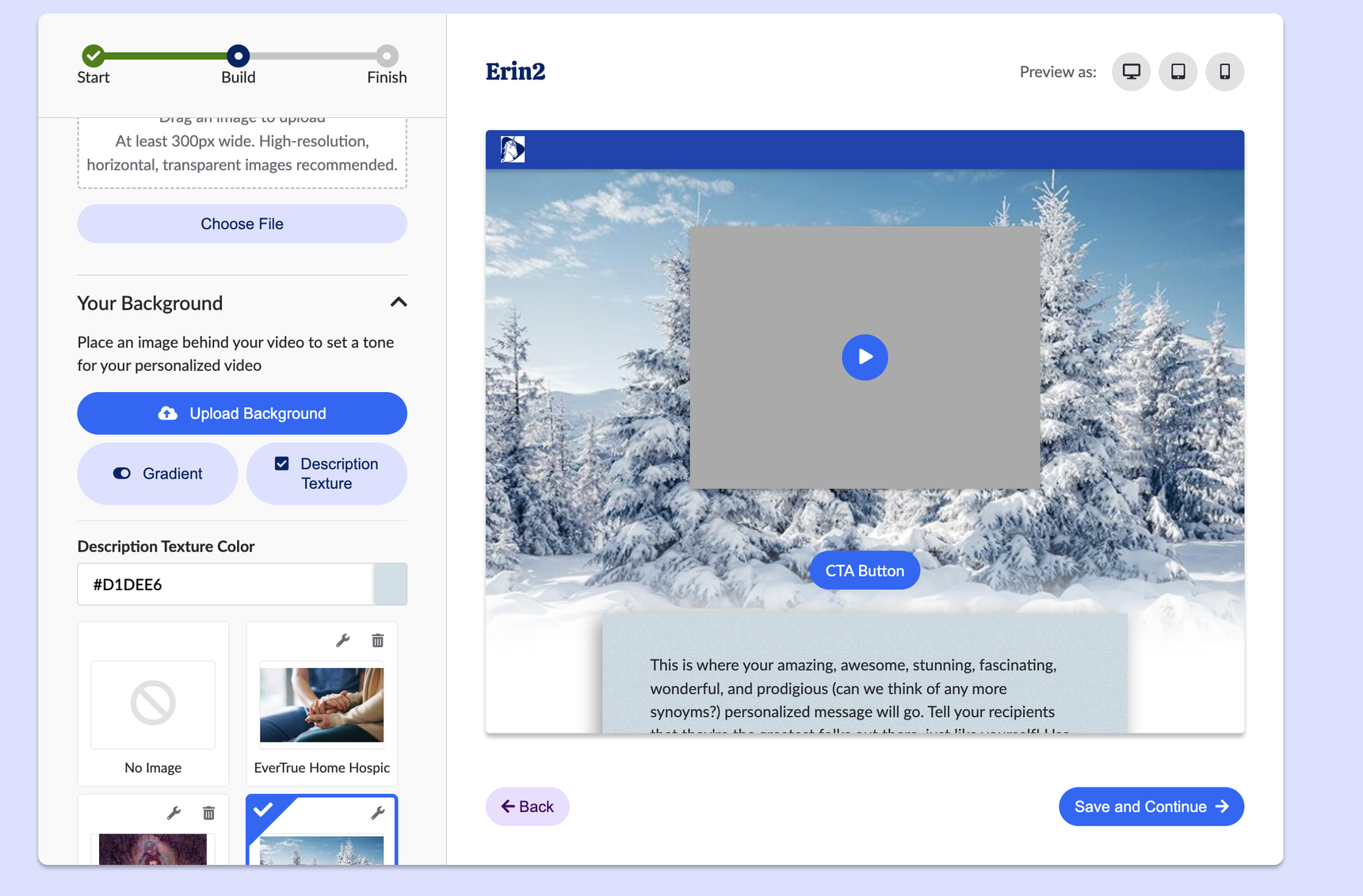
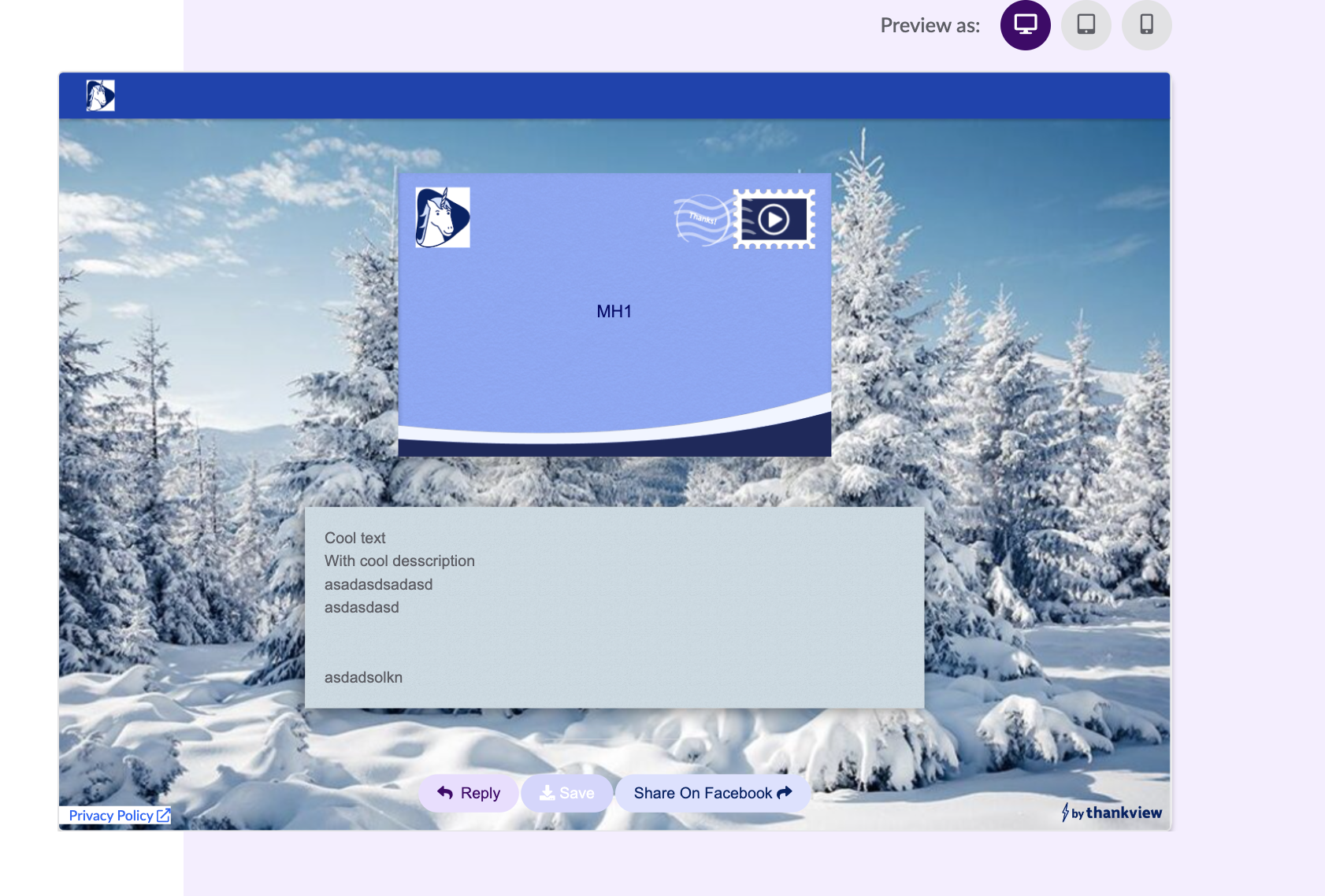
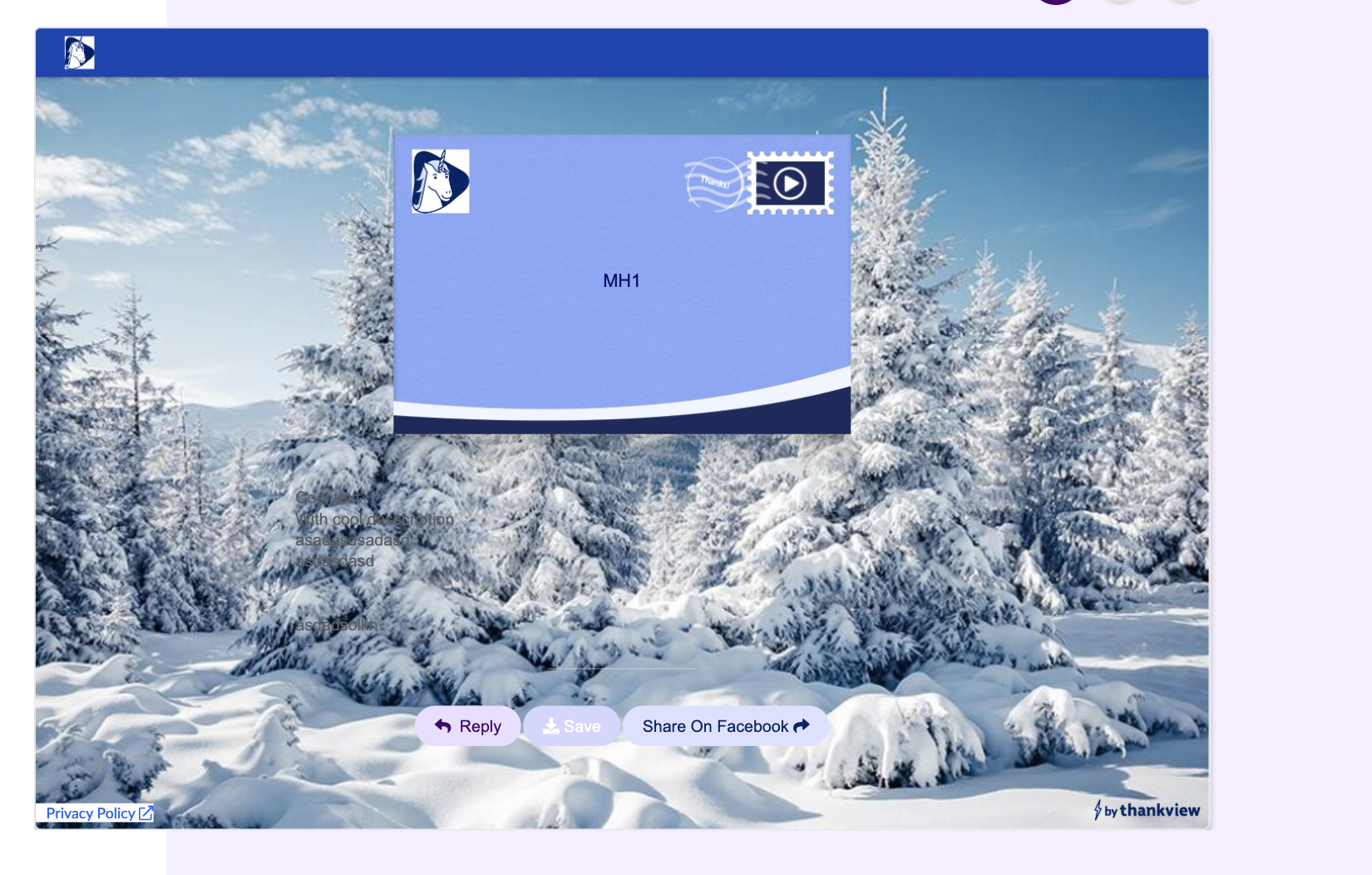
Once you've finished designing your Landing Page, click Save and Continue to save it.
Note: Both header color and landing page logo will be used as an email header for campaigns that use Thumbnail of Video or Animated Thumbnail format. This header does not appear when using the Envelope Format.
Examples of Great Landing Page Designs
Location, Location, Location!

Illinois State University went for simple and on-brand with this design. Featuring their primary red, this Landing Page draws their recipients to an iconic scene from campus. When in doubt, a photo that highlights your location is a great background image.
Highlight the People

This Landing Page does a great job featuring faces on the background photo. Consider featuring students, staff, patients, or volunteers.
Bright and Bold

Never underestimate the power of bright colors and fun energy! Alpha Gamma Delta does just that by posing the students together with balloons that compliment their branding.
If you have additional questions, please reach out to your Customer Success Representative or support@thankview.com.
Reply
Content aside
-
2
Voted most helpful
- 3 yrs agoLast active
- 6141Views
-
1
Following